
On this page
Introduction
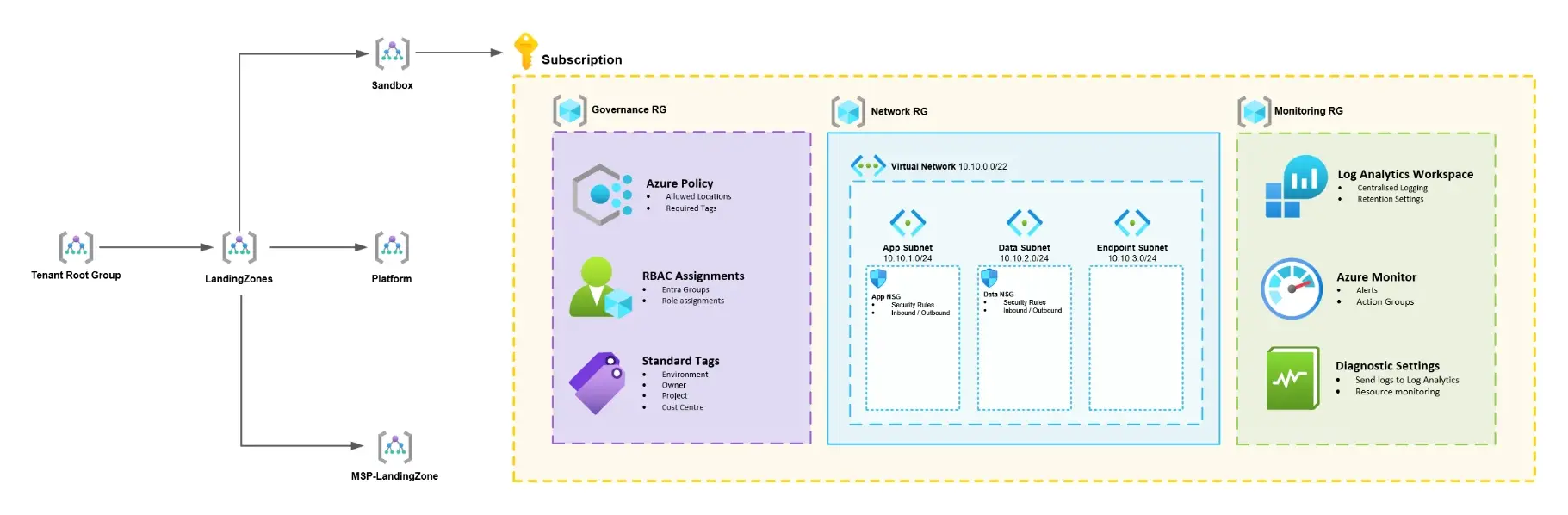
In this project, I'll be designing and deploying a reusable Microsoft Azure Landing Zone for small and medium-sized enterprises (SMEs) using Terraform.
An Azure Landing Zone provides a standardised foundation for deploying cloud infrastructure, covering governance, security, networking and monitoring.
Enterprise landing zones can introduce unnecessary cost and complexity for smaller organisations. The objective of this project is to build a secure, lightweight and cost-effective Azure foundation that can be reused across different customer environments.
The solution will initially use a single Azure subscription, with Terraform Infrastructure as Code (IaC) providing consistent and repeatable deployments.
What Is an Azure Landing Zone?
An Azure Landing Zone establishes the foundation for securely deploying and managing Azure workloads.
Its key components include:
Management Groups: Organise subscriptions and apply governance.
Azure Policy: Enforce organisational standards.
RBAC: Control access to Azure resources.
Networking: Provide secure connectivity.
Security: Protect infrastructure and workloads.
Monitoring: Centralise logging and operational visibility.
Terraform: Automate infrastructure deployments.
For this SME project, I'll focus on essential services without introducing unnecessary complexity, such as dedicated Azure Firewalls or hub-and-spoke networking.
Part 1: Management Group Foundation
The first stage involves creating the management group hierarchy using Terraform.
Management groups allow Azure subscriptions to be organised logically, with policies and access controls inherited from parent groups.
Architecture Design
The following hierarchy has been implemented:
Tenant Root Group
│
└── MSP-LandingZone
    │
    ├── Platform
    ├── LandingZones
    └── Sandbox
        └── Lab Subscription
MSP-LandingZone
The parent management group, providing a central location for governance.
Platform
Reserved for shared infrastructure services if required in future deployments.
LandingZones
Reserved for production and non-production workload subscriptions.
Sandbox
Used for development and testing. My existing Azure subscription has been associated with this management group.
Although the initial SME deployment uses a single subscription, the structure supports future expansion without requiring additional subscriptions from the outset.
Terraform Project Structure
The initial project uses the following files:
azure-landing-zone/
├── providers.tf
├── variables.tf
├── main.tf
├── outputs.tf
└── terraform.tfvars
As the project develops, reusable modules will be introduced for management groups, governance, networking, RBAC and monitoring.
Configuring the Terraform Provider
providers.tf
terraform {
  required_providers {
    azurerm = {
      source  = "hashicorp/azurerm"
      version = "~> 4.0"
    }
  }
}

provider "azurerm" {
  features {}
  subscription_id = var.subscription_id
}
The AzureRM provider allows Terraform to manage Azure resources.
Defining Terraform Variables
variables.tf
variable "subscription_id" {
  description = "Azure subscription ID"
  type        = string
}

variable "management_group_prefix" {
  description = "Management group prefix"
  type        = string
  default     = "alzlab"
}
terraform.tfvars
subscription_id         = "YOUR-SUBSCRIPTION-ID"
management_group_prefix = "alzlab"
Variables allow the configuration to be reused across environments without modifying the underlying code.
Deploying the Management Groups
main.tf
resource "azurerm_management_group" "root" {
  name         = "${var.management_group_prefix}-root"
  display_name = "MSP-LandingZone"
}

resource "azurerm_management_group" "platform" {
  name         = "${var.management_group_prefix}-platform"
  display_name = "Platform"

  parent_management_group_id = azurerm_management_group.root.id
}

resource "azurerm_management_group" "landing_zones" {
  name         = "${var.management_group_prefix}-landingzones"
  display_name = "LandingZones"

  parent_management_group_id = azurerm_management_group.root.id
}

resource "azurerm_management_group" "sandbox" {
  name         = "${var.management_group_prefix}-sandbox"
  display_name = "Sandbox"

  parent_management_group_id = azurerm_management_group.root.id
}
This creates four management groups, with Platform, LandingZones and Sandbox nested beneath MSP-LandingZone.
Associating the Subscription
resource "azurerm_management_group_subscription_association" "lab" {
  management_group_id = azurerm_management_group.sandbox.id
  subscription_id     = "/subscriptions/${var.subscription_id}"
}
This associates the existing Azure subscription with Sandbox, allowing governance policies to be inherited from the management group hierarchy.
Deploying the Infrastructure
Authenticate to Azure
az login
az account set --subscription "YOUR-SUBSCRIPTION-ID"
Initialise and validate Terraform
terraform init
terraform fmt
terraform validate
Review and apply the deployment
terraform plan -out=tfplan
terraform apply tfplan
These commands initialise Terraform, validate the configuration and deploy the defined infrastructure.
Deployment Results
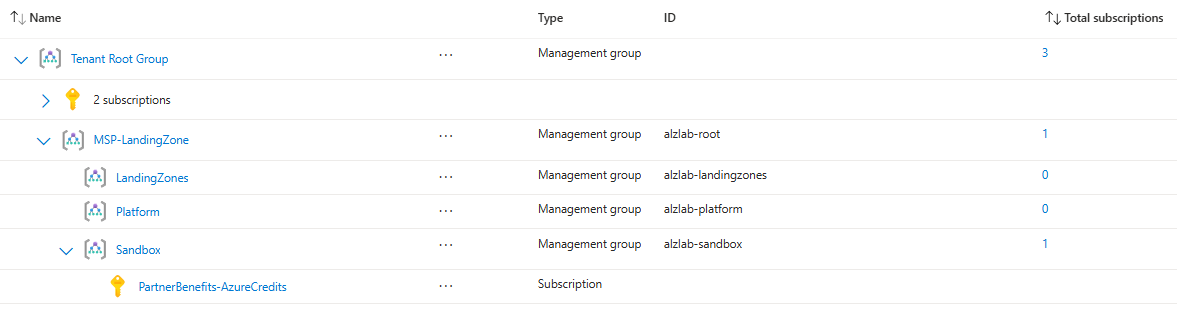
The management group hierarchy has been created, with the existing subscription associated with Sandbox.
(Ignore the 2 existing subscriptions in the Tenant Root Group)
To verify Terraform detects no outstanding configuration changes:

Part 2: Governance and Access
Now that you've created your management group hierarchy and associated your subscription with Sandbox, we'll implement Azure Policy, resource tagging and Role-Based Access Control (RBAC).
The aim is to establish a secure, consistent baseline for your SME Azure Landing Zone before deploying networking and workloads.
What we're building
| Component | Configuration |
|---|---|
| Allowed Locations | UK South and UK West |
| Required Tags | Environment, Owner, CostCentre |
| RBAC | Administrator and Reader access |
| Scope | Sandbox subscription |
| Deployment | Terraform |
We'll start with Azure Policy and test it before introducing RBAC.
Allowed Azure Regions
We'll use Microsoft's built-in Allowed locations policy rather than writing a custom policy.
Create governance.tf
Inside your existing Terraform project, create a new file:
azure-landing-zone/
├── providers.tf
├── variables.tf
├── main.tf
├── governance.tf     ← New
├── outputs.tf
└── terraform.tfvars
Add the following to governance.tf:
# Retrieve Microsoft's built-in policy
data "azurerm_policy_definition" "allowed_locations" {
  display_name = "Allowed locations"
}

# Assign policy to the Sandbox subscription
resource "azurerm_subscription_policy_assignment" "allowed_locations" {
  name         = "allowed-locations"
  display_name = "SME - Allowed Azure Regions"
  description  = "Restrict resources to approved UK regions."

  subscription_id      = "/subscriptions/${var.subscription_id}"
  policy_definition_id = data.azurerm_policy_definition.allowed_locations.id

  enforce = false

  parameters = jsonencode({
    listOfAllowedLocations = {
      value = var.allowed_locations
    }
  })
}
This assigns the built-in policy at subscription scope.
Setting enforce = false means the policy can evaluate compliance without blocking deployments during initial testing.
Add the following to variables.tf:
variable "allowed_locations" {
  description = "List of allowed Azure regions"
  type        = list(string)
}
Add the following to terraform.tfvars:
allowed_locations = ["uksouth", "ukwest"]Deploy through Terraform
Run:
terraform fmt
terraform validate
terraform plan
terraform apply
Review the plan before approving the deployment. It should show the new policy assignment being created without unexpectedly changing your management groups.
Verify in Azure
Navigate to:
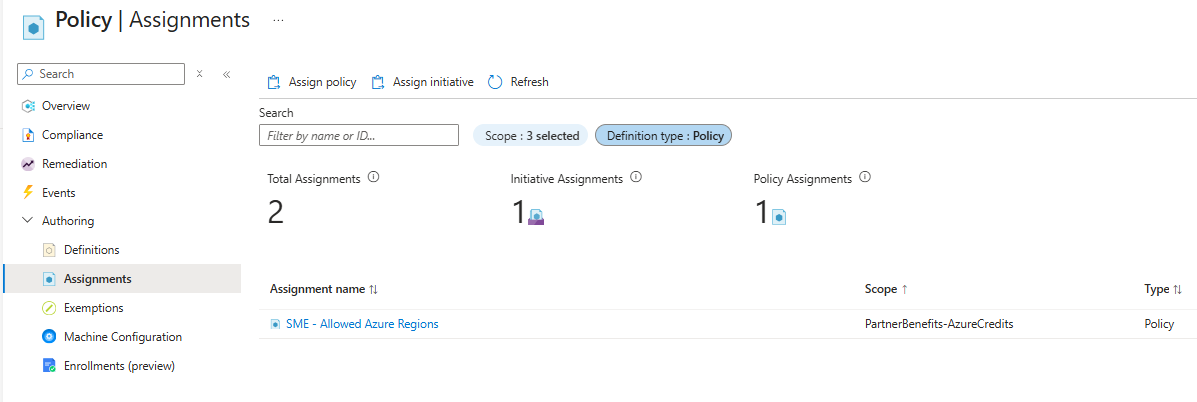
Azure Portal > Policy > Assignments
Select the Sandbox subscription scope and look for:
SME - Allowed Azure Regions
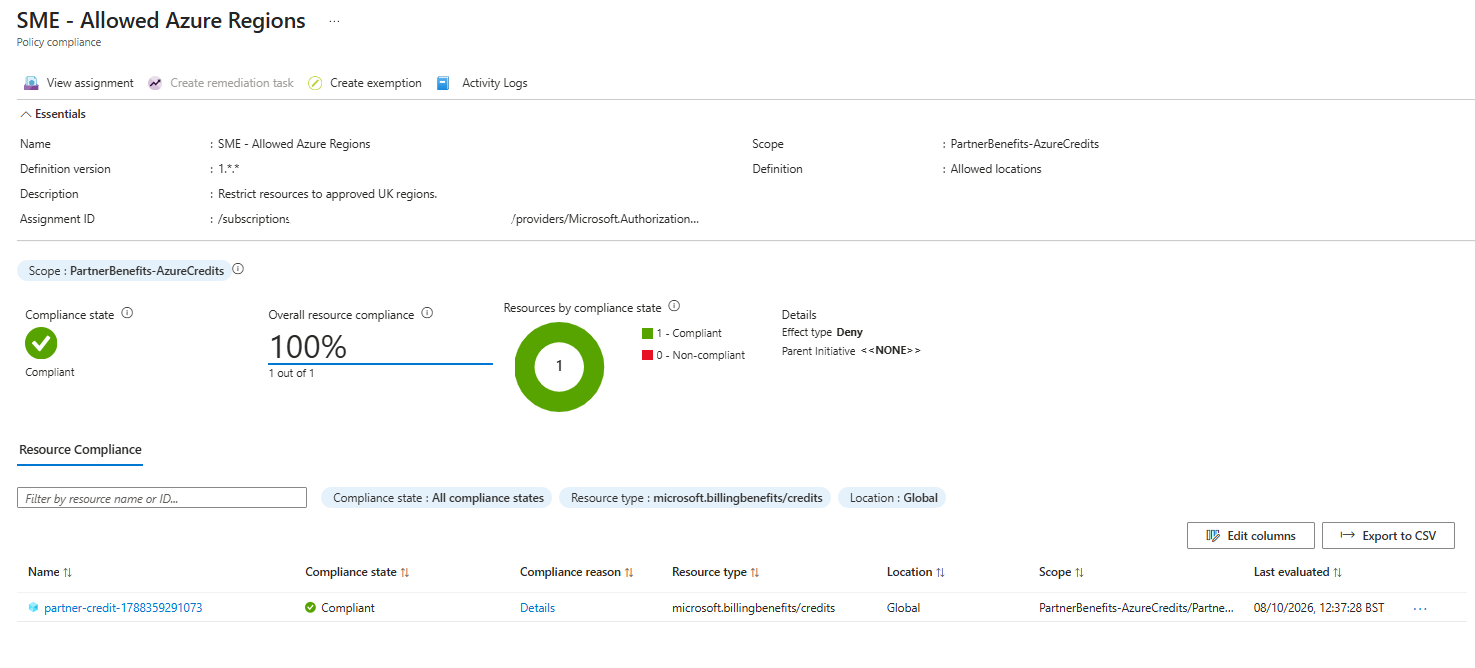
Then check Policy → Compliance once evaluation results are available.
Test the policy
Create two disposable resource groups or test resources:
| Test | Region | Expected result |
|---|---|---|
| TestNetwork-UKS | UK South | Compliant |
| TestNetwork-EUS | East US | Non-compliant when evaluated |

Once you've confirmed the evaluation works, change:
enforce = trueApply again and test an attempted deployment outside the allowed regions. It should now be denied, subject to the policy's exemptions and exclusions.
Required Resource Tags
Next, we'll configure Azure Policy to enforce resource tagging across your SME Landing Zone using Terraform.
This helps organisations identify resource ownership, track costs and maintain consistent governance.
Define the required tags
We'll use three tags:
| Tag | Example | Purpose |
|---|---|---|
Environment | Production | Identifies the environment |
Owner | IT | Identifies responsibility |
CostCentre | IT-001 | Cost allocation |
Update variables.tf
Add:
variable "required_tags" {
  description = "Required Azure resource tags"
  type        = set(string)
  default = [
    "Environment",
    "Owner",
    "CostCentre"
  ]
}
Update governance.tf
Keep your existing Allowed Locations policy and add:
# Retrieve the built-in Azure tagging policy
data "azurerm_policy_definition" "required_tag" {
  display_name = "Require a tag on resources"
}

# Create a policy assignment for each required tag
resource "azurerm_subscription_policy_assignment" "required_tags" {
  for_each = var.required_tags

  name                 = "require-${lower(each.value)}"
  display_name         = "SME - Require ${each.value}"
  subscription_id      = "/subscriptions/${var.subscription_id}"
  policy_definition_id = data.azurerm_policy_definition.required_tag.id

  enforce = false

  parameters = jsonencode({
    tagName = {
      value = each.value
    }
  })
}for_each creates three policy assignments from one resource definition.We're starting with enforce = false, so policies evaluate compliance without denying deployments.
Deploy with Terraform
terraform fmt
terraform validate
terraform plan
terraform apply
The expected result is three new policy assignments:

Test the tagging policies
In the Azure Portal, navigate to Policy → Compliance, selecting your Sandbox subscription.
Create a temporary VNet without the required tags and check the compliance results after policy evaluation.
Then create another VNet with:
tags = {
  Environment = "Development"
  Owner       = "IT"
  CostCentre  = "IT-001"
}
Verify the tagged resource is compliant. Allow time for Azure Policy evaluation; results are not necessarily immediate.
Enable enforcement
Once testing is successful, update:
enforce = trueRun:
terraform plan
terraform apply
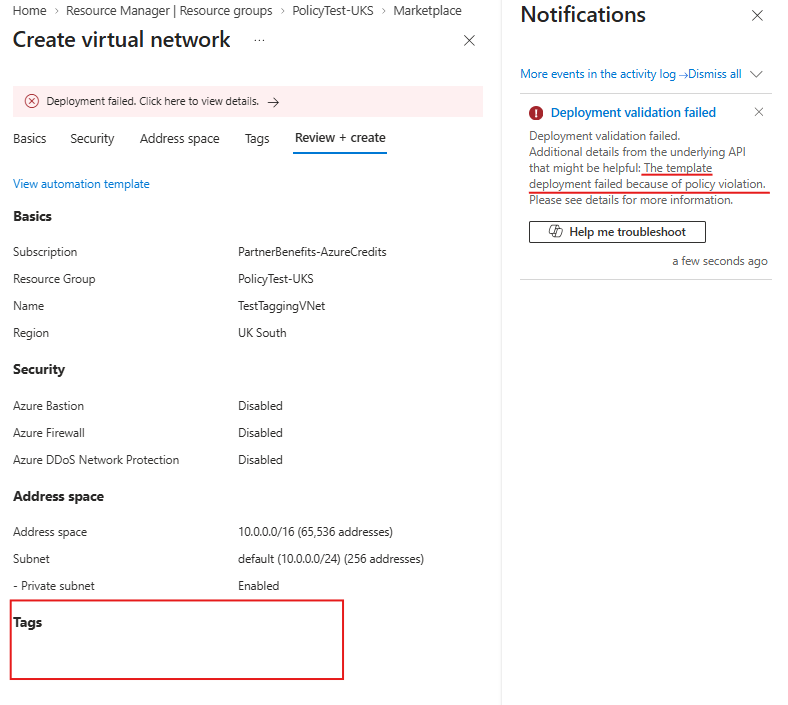
Try creating a temporary VNet without tags again. The deployment should now be denied by Azure Policy.
Instead of manually creating Entra ID security groups, we'll use Terraform to automate both group creation and Azure RBAC assignments.
We'll use two Terraform providers:
AzureAD provider - Creates the Microsoft Entra ID security groups.
AzureRM provider - Assigns Contributor and Reader permissions to those groups.
This means when you deploy the landing zone for another customer, Terraform can create their security groups and configure their Azure permissions automatically.
Azure RBAC
Update providers.tf
Add the azuread provider under your existing azurerm provider.
provider "azuread" {
  tenant_id = var.tenant_id
}
Update variables.tf
Keep your existing variables and add:
variable "tenant_id" {
  description = "Azure AD tenant ID"
  type        = string
}

variable "customer_name" {
  description = "Customer identifier for resource naming"
  type        = string
}
Then add the corresponding values to terraform.tfvars:
tenant_id       = "YOUR-TENANT-ID"
customer_name   = "PaulPopaCloud"
This allows each customer deployment to use its own Entra tenant and naming convention.
Create rbac.tf
We'll create both Entra ID groups and assign their Azure roles automatically.
# Get the current Terraform identity
data "azuread_client_config" "current" {}

# Create security groups
resource "azuread_group" "admins" {
  display_name            = "SG-${var.customer_name}-Azure-Admins"
  security_enabled        = true
  prevent_duplicate_names = true

  owners = [
    data.azuread_client_config.current.object_id
  ]
}

resource "azuread_group" "readers" {
  display_name            = "SG-${var.customer_name}-Azure-Readers"
  security_enabled        = true
  prevent_duplicate_names = true

  owners = [
    data.azuread_client_config.current.object_id
  ]
}

# Assign Contributor role
resource "azurerm_role_assignment" "admins" {
  scope                = "/subscriptions/${var.subscription_id}"
  role_definition_name = "Contributor"
  principal_id         = azuread_group.admins.object_id
  principal_type       = "Group"
}

# Assign Reader role
resource "azurerm_role_assignment" "readers" {
  scope                = "/subscriptions/${var.subscription_id}"
  role_definition_name = "Reader"
  principal_id         = azuread_group.readers.object_id
  principal_type       = "Group"
}
Terraform uses the group Object IDs automatically, so there's no need to copy them manually.
Deploy everything
Run:
terraform init -upgrade
terraform fmt
terraform validate
terraform plan
terraform apply
Expected result
Two Entra ID security groups created.
Contributor assigned to the administrators group.
Reader assigned to the readers group.
All resources tracked within Terraform state.
Verify the deployment
In Microsoft Entra ID > Groups, confirm both groups exist.
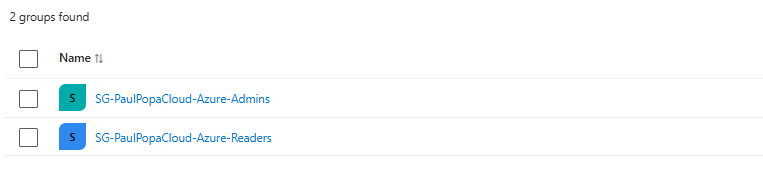
Then go to Subscriptions > Sandbox Subscription > Access control (IAM) and check:

The groups will initially have no members, other than the configured owner relationship. You can add test users to validate their access. Group membership can also be automated through Terraform later.
Part 3: Networking
Now that we've configured management groups, Azure Policy and RBAC, we'll build the networking foundation for your SME Landing Zone.
Keeping it simple: one VNet, three subnets and Network Security Groups (NSGs). No Azure Firewall or hub-and-spoke architecture.
Network Architecture
vnet-sme-dev-uks-01 · 10.10.0.0/22 · UK South
| Subnet | Address range | Purpose |
|---|---|---|
| Application Subnet | 10.10.1.0/24 | Application VMs and services |
| Data Subnet | 10.10.2.0/24 | Database and backend workloads |
| Private Endpoint Subnet | 10.10.3.0/24 | Private access to Azure PaaS services |
Virtual Network and Subnets
Create networking.tf in your existing Terraform project and add:
# Networking resource group
resource "azurerm_resource_group" "network" {
  name     = "rg-${var.customer_name}-network-dev-uks-01"
  location = "uksouth"

  tags = {
    Environment = "Development"
    Owner       = "IT"
    CostCentre  = "IT-001"
  }
}

# Virtual Network
resource "azurerm_virtual_network" "main" {
  name                = "vnet-${var.customer_name}-dev-uks-01"
  address_space       = ["10.10.0.0/22"]
  location            = azurerm_resource_group.network.location
  resource_group_name = azurerm_resource_group.network.name

  tags = azurerm_resource_group.network.tags
}

# Application subnet
resource "azurerm_subnet" "app" {
  name                 = "snet-app"
  resource_group_name  = azurerm_resource_group.network.name
  virtual_network_name = azurerm_virtual_network.main.name
  address_prefixes     = ["10.10.1.0/24"]
}

# Data subnet
resource "azurerm_subnet" "data" {
  name                 = "snet-data"
  resource_group_name  = azurerm_resource_group.network.name
  virtual_network_name = azurerm_virtual_network.main.name
  address_prefixes     = ["10.10.2.0/24"]
}

# Private Endpoint subnet
resource "azurerm_subnet" "private_endpoints" {
  name                 = "snet-private-endpoints"
  resource_group_name  = azurerm_resource_group.network.name
  virtual_network_name = azurerm_virtual_network.main.name
  address_prefixes     = ["10.10.3.0/24"]
}
This creates the resource group, VNet and subnets.
Network Security Groups
We'll create an NSG for the application subnet and associate it using Terraform.
Add the following to networking.tf:
# Application NSG
resource "azurerm_network_security_group" "app" {
  name                = "nsg-${var.customer_name}-app-dev-uks-01"
  location            = azurerm_resource_group.network.location
  resource_group_name = azurerm_resource_group.network.name

  tags = azurerm_resource_group.network.tags
}

# Associate NSG with application subnet
resource "azurerm_subnet_network_security_group_association" "app" {
  subnet_id                 = azurerm_subnet.app.id
  network_security_group_id = azurerm_network_security_group.app.id
}
An NSG has default rules, including inbound Internet traffic denial. We'll add workload-specific rules later rather than opening unnecessary ports now.
The data subnet should also receive an NSG before hosting workloads. The private endpoint subnet will require its own carefully considered security configuration when we deploy private endpoints.
Deploy
Run:
terraform fmt
terraform validate
terraform plan
terraform apply
Review the plan to ensure Terraform isn't unexpectedly modifying your existing management groups, policies or RBAC assignments.
Verify in Azure
Navigate to Azure Portal > Virtual Networks > Settings > Subnets and confirm:

Securing Traffic Between Subnets
Now that you've deployed your VNet and three subnets using Terraform, we'll configure Network Security Group (NSG) rules to control traffic between them.
The goal is to prevent unnecessary access to your application and data subnets.
Our security design
| Traffic | Action | Reason |
|---|---|---|
| App > Data (TCP 1433) | Allow | Example SQL Server connection |
| App > Data (other ports) | Deny | Restrict unnecessary access |
| Data > App (new connections) | Deny | Prevent data-tier initiated connections |
| Internet > App | Deny | No public inbound access |
| Internet > Data | Deny | Protect backend resources |
Azure NSGs are stateful, so return traffic for an allowed connection is automatically permitted.
We'll use SQL Server port 1433 as a lab example. Only permit this when your actual workload requires it.
Update networking.tf
You already have an NSG associated with your application subnet.
Add a separate NSG for your data subnet:
# Data NSG
resource "azurerm_network_security_group" "data" {
  name                = "nsg-${var.customer_name}-data-dev-uks-01"
  location            = azurerm_resource_group.network.location
  resource_group_name = azurerm_resource_group.network.name

  tags = azurerm_resource_group.network.tags
}

# Associate NSG with data subnet
resource "azurerm_subnet_network_security_group_association" "data" {
  subnet_id                 = azurerm_subnet.data.id
  network_security_group_id = azurerm_network_security_group.data.id
}
Allow application-to-database traffic
Add this rule to the data NSG:
resource "azurerm_network_security_rule" "allow_app_sql" {
  name                        = "Allow-App-To-SQL"
  priority                    = 100
  direction                   = "Inbound"
  access                      = "Allow"
  protocol                    = "Tcp"
  source_port_range           = "*"
  destination_port_range      = "1433"
  source_address_prefix       = "10.10.1.0/24"
  destination_address_prefix  = "10.10.2.0/24"
  resource_group_name         = azurerm_resource_group.network.name
  network_security_group_name = azurerm_network_security_group.data.name
}
This permits TCP 1433 connections from the application subnet to the data subnet.
Deny other application-to-data traffic
resource "azurerm_network_security_rule" "deny_app_to_data" {
  name                        = "Deny-App-To-Data"
  priority                    = 200
  direction                   = "Inbound"
  access                      = "Deny"
  protocol                    = "*"
  source_port_range           = "*"
  destination_port_range      = "*"
  source_address_prefix       = "10.10.1.0/24"
  destination_address_prefix  = "10.10.2.0/24"
  resource_group_name         = azurerm_resource_group.network.name
  network_security_group_name = azurerm_network_security_group.data.name
}
Because the allow rule has a higher priority (lower number), SQL traffic is permitted and other application-to-data traffic is denied.
Restrict data-to-application traffic
Add an outbound rule to the data NSG:
resource "azurerm_network_security_rule" "deny_data_to_app" {
  name                        = "Deny-Data-To-App"
  priority                    = 200
  direction                   = "Outbound"
  access                      = "Deny"
  protocol                    = "*"
  source_port_range           = "*"
  destination_port_range      = "*"
  source_address_prefix       = "10.10.2.0/24"
  destination_address_prefix  = "10.10.1.0/24"
  resource_group_name         = azurerm_resource_group.network.name
  network_security_group_name = azurerm_network_security_group.data.name
}
This blocks new data-to-application connections while allowing return traffic for established, permitted connections.
Important: Block other unwanted VNet traffic
Azure NSGs include a default AllowVNetInBound rule. The rules above only restrict traffic between the application and data subnets, they do not isolate the data subnet from every other subnet or connected network.
To establish a stricter baseline, add:
resource "azurerm_network_security_rule" "deny_other_data_inbound" {
  name                        = "Deny-Other-VNet-Inbound"
  priority                    = 300
  direction                   = "Inbound"
  access                      = "Deny"
  protocol                    = "*"
  source_port_range           = "*"
  destination_port_range      = "*"
  source_address_prefix       = "VirtualNetwork"
  destination_address_prefix  = "10.10.2.0/24"
  resource_group_name         = azurerm_resource_group.network.name
  network_security_group_name = azurerm_network_security_group.data.name
}
This provides broader inbound isolation for the data subnet, but it must be reviewed if you later add DNS servers, monitoring agents, hybrid connectivity or other services requiring network access.
VirtualNetwork tag also covers the data subnet itself, this rule blocks traffic between VMs inside the data subnet too. If you later run something that needs them to talk to each other, such as a SQL cluster, add an allow rule for that traffic above priority 300.Deploy
terraform fmt
terraform validate
terraform plan
terraform apply
Review the plan to confirm Terraform creates the new data NSG, subnet association and security rules.
Test the rules
Navigate to Azure Portal > Network Security Groups > Effective security rules on a VM's network interface, once test VMs have been deployed.
You can also use Azure Network Watcher connectivity tests to validate allowed and denied traffic.
| Test | Expected |
|---|---|
| App VM > Data VM TCP 1433 | Allowed by NSG |
| App VM > Data VM TCP 445 | Denied |
| Data VM > App VM TCP 3389 | Denied |
| Internet > Data VM | Denied by default inbound rules |
Part 4: Monitoring and Logging
Next, we'll configure centralised monitoring for your SME Azure Landing Zone.
Since we've skipped deploying test VMs, we'll focus on monitoring the Azure subscription and networking infrastructure you've already created.
What we're building
| Component | Purpose |
|---|---|
| Log Analytics Workspace | Central location for diagnostic logs |
| Azure Monitor | Monitor activity and resource metrics |
| Diagnostic Settings | Forward subscription activity logs |
| Action Group | Send email notifications |
| Activity Log Alert | Detect resource deletion events |
We'll also configure 30-day log retention to help control costs.
Log Analytics Workspace
Create monitoring.tf and start with a resource group and Log Analytics workspace.
# Monitoring Resource Group
resource "azurerm_resource_group" "monitoring" {
  name     = "rg-${var.customer_name}-monitoring-dev-uks-01"
  location = "uksouth"

  tags = {
    Environment = "Development"
    Owner       = "IT"
    CostCentre  = "IT-001"
  }
}

# Log Analytics Workspace
# Centralised storage for Azure logs and diagnostics
resource "azurerm_log_analytics_workspace" "main" {
  name                = "law-${var.customer_name}-dev-uks-01"
  location            = azurerm_resource_group.monitoring.location
  resource_group_name = azurerm_resource_group.monitoring.name

  sku               = "PerGB2018"
  retention_in_days = 30

  tags = azurerm_resource_group.monitoring.tags
}
This creates a workspace where we can collect and query logs using Kusto Query Language (KQL).
Subscription Diagnostic Settings
We'll send Azure subscription activity logs into Log Analytics.
Add this to monitoring.tf:
# Subscription Diagnostic Settings
# Forward Azure Activity Logs to the Log Analytics Workspace
resource "azurerm_monitor_diagnostic_setting" "subscription" {
  name               = "diag-sme-subscription"
  target_resource_id = "/subscriptions/${var.subscription_id}"

  log_analytics_workspace_id = azurerm_log_analytics_workspace.main.id

  # Administrative operations such as resource creation and deletion
  enabled_log {
    category = "Administrative"
  }

  # Azure Policy compliance and enforcement events
  enabled_log {
    category = "Policy"
  }

  # Security-related Azure Activity Log events
  enabled_log {
    category = "Security"
  }
}
This collects administrative operations, policy events and security-related Azure Activity Log events.
It doesn't automatically collect guest operating system logs, VNet flow logs or every resource's diagnostic logs.
Email Alerts
We'll create an Azure Monitor Action Group.
Add to variables.tf
# Email address used for Azure Monitor notifications
variable "alert_email" {
  description = "Email address for Azure monitoring alerts"
  type        = string
}
Add to terraform.tfvars
alert_email = "your-email@example.com"Add to monitoring.tf
# Azure Monitor Action Group
# Sends email notifications when monitoring alerts are triggered
resource "azurerm_monitor_action_group" "main" {
  name                = "ag-${var.customer_name}-dev-01"
  resource_group_name = azurerm_resource_group.monitoring.name
  short_name          = "smealerts"

  email_receiver {
    name          = "IT-Notifications"
    email_address = var.alert_email
  }

  tags = azurerm_resource_group.monitoring.tags
}
Resource Group Deletion Alert
We'll detect when someone initiates a resource group deletion.
# Resource Group Deletion Alert
# Notify administrators when a resource group deletion is initiated
resource "azurerm_monitor_activity_log_alert" "rg_delete" {
  name                = "alert-resource-group-delete"
  resource_group_name = azurerm_resource_group.monitoring.name
  location            = "global"
  scopes              = ["/subscriptions/${var.subscription_id}"]

  description = "Notify IT when a resource group deletion is initiated."

  # Monitor resource group deletion events
  criteria {
    category       = "Administrative"
    operation_name = "Microsoft.Resources/subscriptions/resourceGroups/delete"
  }

  # Send alerts to the configured Action Group
  action {
    action_group_id = azurerm_monitor_action_group.main.id
  }

  tags = azurerm_resource_group.monitoring.tags
}
This monitors subscription Activity Log events for the resource-group delete operation. It does not replace resource locks or preventive access controls.
Deploy
Run:
terraform fmt
terraform validate
terraform plan
terraform apply
Your plan should include approximately five new resources:
Monitoring resource group
Log Analytics workspace
Subscription diagnostic setting
Action group
Activity Log alert
Check that the plan doesn't remove or unexpectedly modify existing landing zone resources.
Validate the Deployment
Once deployed, verify the following:
| Azure Portal Location | What to check |
|---|---|
| Log Analytics Workspaces | Workspace exists in UK South |
| Monitor > Diagnostic settings | Subscription logs are exported |
| Monitor > Alerts > Action groups | Email receiver is configured |
| Monitor > Alerts > Alert rules | Resource group deletion alert exists |
Test Log Analytics
Open your Log Analytics workspace > Logs and run:
AzureActivity
| where TimeGenerated > ago(24h)
| project TimeGenerated, OperationNameValue,
          ActivityStatusValue, Caller
| order by TimeGenerated desc
This displays recent ingested Azure Activity Log events. Allow time for log ingestion; an empty result doesn't necessarily mean the configuration failed.
Test your alert
In Azure Monitor, open the Action Group and use its Test feature to check email delivery.
Part 5: Remote Terraform State
Now we'll make your SME Azure Landing Zone reusable across different customers.
So far, we've built Terraform configurations for management groups, governance, RBAC, networking and monitoring.
The next step is to separate those components into reusable modules and store Terraform state securely in Azure.
We'll start with remote state because it's important to protect your infrastructure state before introducing automated customer deployments.
Why Remote State
Currently, Terraform likely stores your infrastructure state locally in terraform.tfstate.
For an MSP solution, that's not ideal because state needs to be protected, backed up and accessible to authorised deployment processes.
We'll use:
| Resource | Purpose |
|---|---|
| Azure Storage Account | Securely stores Terraform state |
| Blob Container | Holds state files |
| Azure RBAC | Controls who can access state |
| Blob Versioning | Helps recover previous state versions |
| State Locking | Prevents simultaneous state modifications |
We'll create this storage separately from your existing landing zone configuration to avoid Terraform depending on the backend it is trying to initialise.
Bootstrap Azure Storage with Terraform
We'll use a separate Terraform folder to create the storage account for remote state.
azure-landing-zone/
├── bootstrap/
│   ├── providers.tf
│   └── main.tf
├── providers.tf
├── main.tf
├── governance.tf
├── networking.tf
├── rbac.tf
├── monitoring.tf
├── variables.tf
└── outputs.tf
bootstrap/providers.tf
# Configure Terraform and AzureRM provider
terraform {
  required_providers {
    azurerm = {
      source  = "hashicorp/azurerm"
      version = "~> 4.0"
    }
  }
}

provider "azurerm" {
  features {}
  subscription_id = "YOUR-SUBSCRIPTION-ID"
}
bootstrap/main.tf
# Resource Group for Terraform State
resource "azurerm_resource_group" "tfstate" {
  name     = "rg-terraform-state-uks-01"
  location = "uksouth"

  tags = {
    Environment = "Development"
    Owner       = "IT"
    CostCentre  = "IT-001"
  }
}

# Storage Account for Terraform State
resource "azurerm_storage_account" "tfstate" {
  name                            = "sttfstatespaulpopacloud"
  resource_group_name             = azurerm_resource_group.tfstate.name
  location                        = azurerm_resource_group.tfstate.location
  account_tier                    = "Standard"
  account_replication_type        = "LRS"
  min_tls_version                 = "TLS1_2"
  https_traffic_only_enabled      = true
  public_network_access_enabled   = true
  allow_nested_items_to_be_public = false
  shared_access_key_enabled       = false

  blob_properties {
    versioning_enabled = true

    delete_retention_policy {
      days = 7
    }

    container_delete_retention_policy {
      days = 7
    }
  }

  tags = azurerm_resource_group.tfstate.tags
}

# Private Blob Container for Terraform State
resource "azurerm_storage_container" "tfstate" {
  name                  = "tfstate"
  storage_account_id    = azurerm_storage_account.tfstate.id
  container_access_type = "private"
}
Change the storage account name to something globally unique.
Deploy the bootstrap
In PowerShell:
cd bootstrap

terraform init
terraform fmt
terraform validate
terraform plan
terraform apply
Because you're using Microsoft Entra authentication for blob access, your deployment identity needs appropriate storage data-plane permissions to create the container. If container creation returns a 403 error, check its Storage Blob Data Contributor permissions at the storage account scope.
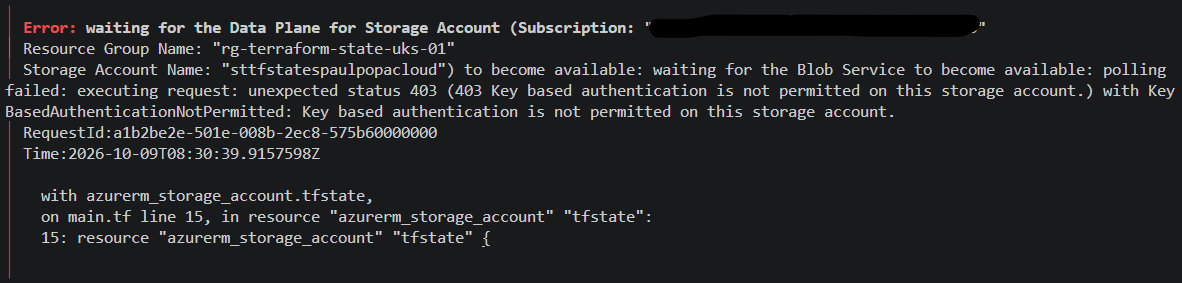
Also, your existing Azure Policy tagging rules may affect the storage account deployment. Review any denials before changing enforcement.
Configure the Remote Backend
Return to the main project directory and add this backend block inside your existing terraform block in providers.tf.
# Remote Terraform State Backend
backend "azurerm" {
  storage_account_name = "sttfstatespaulpopacloud"
  container_name       = "tfstate"
  key                  = "sme-lab/terraform.tfstate"

  use_azuread_auth = true
  use_cli          = true
}terraform { ... }, not inside provider "azurerm" { ... }.This uses your Azure CLI identity and Microsoft Entra authentication, rather than storing a storage account key.
Assign Storage Permissions
Your Azure CLI identity needs Storage Blob Data Contributor on the state storage account.
Use Azure Portal > Storage Account > Access Control (IAM) to grant the role, using an authorised administrator account.
For an MSP deployment, make this access limited to the deployment identities that actually require it.
Migrate Existing Terraform State
From your main landing zone directory, run:
terraform init -migrate-stateTerraform should ask whether you want to copy the existing local state to the new Azure backend.
Review the prompt and confirm the migration.
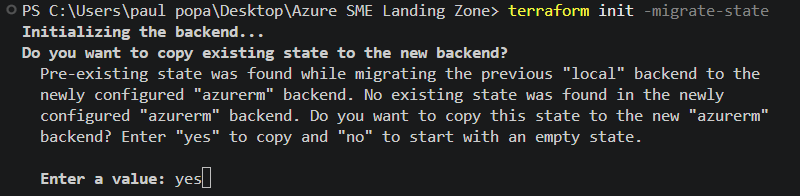
terraform apply against an empty remote state before migrating. Terraform could attempt to recreate existing resources.After migration:
terraform state list
terraform plan
Verify all previously managed resources are still listed and the plan shows no unexpected changes.

Azure Blob Storage provides state locking and encryption at rest.
Verify the State in Azure
Navigate to: Storage Account > Containers > tfstate
You should see a blob similar to:
sme-lab/terraform.tfstate
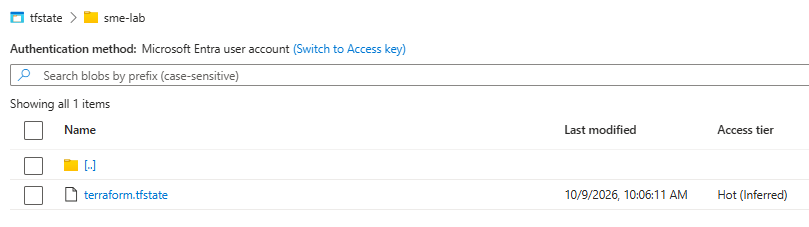
That confirms your existing Terraform state has been migrated to Azure Storage.
Next: Terraform Modules
Once remote state is working, we'll separate the configuration into modules:
modules/
├── management-groups/
├── governance/
├── networking/
├── rbac/
└── monitoring/
We'll also separate tenant-level management groups from customer workload deployments so the same code can be used safely across different organisations.
terraform state list still contains your existing resources and terraform plan shows no unexpected changes. That's the critical test for this phase.Part 6: Reusable Terraform Modules
Now that the core Azure infrastructure has been deployed, the next step is to restructure the Terraform configuration into reusable modules.
Rather than maintaining networking, governance, RBAC and monitoring resources directly in the root configuration, each component will be managed through a dedicated module.
This allows the same infrastructure to be deployed across different customers and environments using configurable variables, without duplicating Terraform code.
Restructure the Project
The project will be organised as follows:
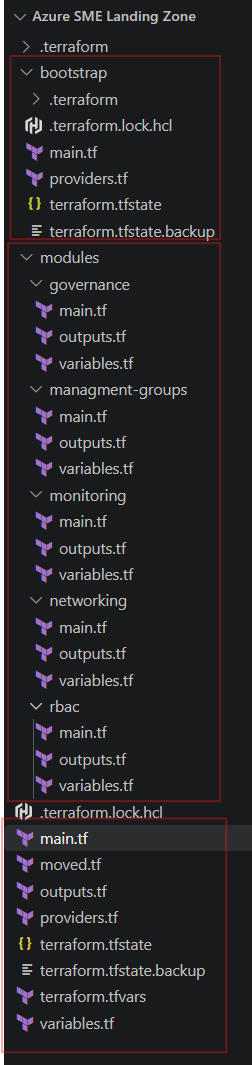
Each module contains:
main.tf: Defines the infrastructure resources.
variables.tf: Declares configurable inputs.
outputs.tf: Exposes resource information to other modules.
The bootstrap directory remains separate because it manages the Azure Storage infrastructure used for Terraform remote state.
Convert Management Groups into a Module
Create modules/management-groups/.
Move the existing management group resources and subscription association from the root main.tf into modules/management-groups/main.tf.
Keep the existing Terraform resource names unchanged during migration.
Module Variables
modules/management-groups/variables.tf
variable "subscription_id" {
  description = "The ID of the subscription"
  type        = string
}

variable "management_group_prefix" {
  description = "The prefix for the management groups"
  type        = string
}
Module Outputs
modules/management-groups/outputs.tf
output "landing_zone_root_id" {
  value = azurerm_management_group.root.id
}

output "platform_id" {
  value = azurerm_management_group.platform.id
}

output "sandbox_id" {
  value = azurerm_management_group.sandbox.id
}

output "landing_zones_id" {
  value = azurerm_management_group.landing_zones.id
}
Management groups will eventually be managed through a separate tenant-level Terraform configuration, as they should not be recreated for every development or production environment.
Convert Governance into a Module
Create modules/governance/.
Move the existing Azure Policy definitions and assignments from governance.tf into modules/governance/main.tf.
Module Variables
modules/governance/variables.tf
# Target Azure Subscription
variable "subscription_id" {
  type = string
}

# Approved Azure Regions
variable "allowed_locations" {
  type = list(string)
}

# Required Resource Tags
variable "required_tags" {
  type = set(string)
}

# Enable or Disable Policy Enforcement
variable "enforce_policies" {
  type    = bool
  default = false
}
The policy assignments will reference these variables rather than hardcoded customer settings.
The remaining required-tag assignments are transferred into the same module, preserving their original resource names and for_each keys.
Convert Networking into a Module
Create modules/networking/.
Move all networking resources from networking.tf into modules/networking/main.tf.
Module Variables
modules/networking/variables.tf
variable "customer_name" {
  type = string
}

variable "prefix_location" {
  type = string
}

variable "location" {
  type = string
}

variable "environment" {
  type = string
}

variable "tags" {
  type = map(string)
}

variable "vnet_address_space" {
  type = string
}

variable "app_subnet" {
  type = string
}

variable "data_subnet" {
  type = string
}

variable "private_endpoint_subnet" {
  type = string
}
The network resources will use these variables to support different customer environments.
During migration, the configured names and address ranges must remain consistent with the existing Azure resources to avoid unintended changes.
Module Outputs
modules/networking/outputs.tf
# Virtual Network ID
output "vnet_id" {
  value = azurerm_virtual_network.main.id
}

# Application Subnet ID
output "app_subnet_id" {
  value = azurerm_subnet.app.id
}

# Data Subnet ID
output "data_subnet_id" {
  value = azurerm_subnet.data.id
}

# Private Endpoint Subnet ID
output "private_endpoint_subnet_id" {
  value = azurerm_subnet.private_endpoints.id
}
Convert RBAC into a Module
Create modules/rbac/.
Move the existing Entra ID security group and Azure RBAC configurations from rbac.tf into modules/rbac/main.tf.
Module Variables
modules/rbac/variables.tf
variable "subscription_id" {
  type = string
}

variable "customer_name" {
  type = string
}
The Entra ID groups and role assignments will retain their existing definitions, with customer-specific information supplied through variables.
The AzureAD provider remains configured in the root module and is inherited by the RBAC module.
Convert Monitoring into a Module
Create modules/monitoring/.
Move the existing resources from monitoring.tf into modules/monitoring/main.tf.
This includes:
Monitoring resource group
Log Analytics workspace
Subscription diagnostic settings
Azure Monitor Action Group
Resource group deletion alert
Module Variables
modules/monitoring/variables.tf
variable "subscription_id" {
  type = string
}

variable "customer_name" {
  type = string
}

variable "environment" {
  type = string
}

variable "location" {
  type = string
}

variable "tags" {
  type = map(string)
}

variable "alert_email" {
  type = string
}
The module will use these variables to configure monitoring consistently across different customer environments.
Update the Root Terraform Configuration
Once the resources have been transferred into their respective modules, the root main.tf will call each module.
# Deploy Management Groups Module
module "management_groups" {
  source = "./modules/management-groups"

  subscription_id         = var.subscription_id
  management_group_prefix = var.management_group_prefix
}

# Deploy SME Networking Module
module "networking" {
  source = "./modules/networking"

  customer_name   = var.customer_name
  environment     = var.environment
  prefix_location = var.prefix_location
  location        = var.location

  vnet_address_space      = var.vnet_address_space
  app_subnet              = var.app_subnet
  data_subnet             = var.data_subnet
  private_endpoint_subnet = var.private_endpoint_subnet

  tags = var.tags
}

# Deploy Azure Governance Module
module "governance" {
  source = "./modules/governance"

  subscription_id = var.subscription_id

  allowed_locations = var.allowed_locations
  required_tags     = var.required_tags

  enforce_policies = var.enforce_policies
}

# Deploy Azure Monitoring Module
module "monitoring" {
  source = "./modules/monitoring"

  customer_name   = var.customer_name
  subscription_id = var.subscription_id
  alert_email     = var.alert_email
  environment     = var.environment
  location        = var.location
  tags            = var.tags
}

# Deploy Azure RBAC Module
module "rbac" {
  source = "./modules/rbac"

  subscription_id = var.subscription_id
  customer_name   = var.customer_name
}
The root variables.tf will declare the inputs passed to these modules, while terraform.tfvars supplies their values.
For example:
# Customer Configuration
subscription_id         = "YOUR-SUB-ID"
tenant_id               = "YOUR-TENANT-ID"
customer_name           = "PaulPopaCloud"
environment             = "dev"
prefix_location         = "uks"
location                = "uksouth"
alert_email             = "your-email@example.com"
management_group_prefix = "alzlab"

# Networking
vnet_address_space      = "10.10.0.0/22"
app_subnet              = "10.10.1.0/24"
data_subnet             = "10.10.2.0/24"
private_endpoint_subnet = "10.10.3.0/24"

# Governance
allowed_locations = ["uksouth", "ukwest"]

required_tags = [
  "Environment",
  "Owner",
  "CostCentre"
]

enforce_policies = true

# Resource Tags
tags = {
  Environment = "Development"
  Owner       = "IT"
  CostCentre  = "IT-001"
}
Additional existing values, including subscription ID, tenant ID, management group prefix and monitoring email, remain in the root configuration.
This allows customer-specific infrastructure settings to be changed without modifying the module code.
The root providers.tf will continue to configure AzureRM and AzureAD, while root outputs can reference module outputs such as module.networking.vnet_id.
Preserve Existing Terraform Resources
Because these resources have already been deployed, moving them into modules changes their Terraform resource addresses.
To prevent this, we'll use Terraform moved blocks.
moved.tf
For example, the existing management group, governance and networking resources can be mapped to their new module addresses:
# Management Group
moved {
  from = azurerm_management_group.root
  to   = module.management_groups.azurerm_management_group.root
}

# Allowed Locations Policy
moved {
  from = azurerm_subscription_policy_assignment.allowed_locations
  to   = module.governance.azurerm_subscription_policy_assignment.allowed_locations
}

# Virtual Network
moved {
  from = azurerm_virtual_network.main
  to   = module.networking.azurerm_virtual_network.main
}

# Administrator Security Group
moved {
  from = azuread_group.admins
  to   = module.rbac.azuread_group.admins
}

# Log Analytics Workspace
moved {
  from = azurerm_log_analytics_workspace.main
  to   = module.monitoring.azurerm_log_analytics_workspace.main
}
Equivalent moved blocks must be created for every existing managed resource being transferred into the modules, including all NSGs, security rules, policy assignments, RBAC roles and monitoring resources.
The source and destination addresses must match the existing state and new resource declarations exactly.
Once the resources have been defined inside their respective modules and the moved blocks have been added, remove the original resource declarations from the root configuration.
If the original networking.tf, monitoring.tf and rbac.tf files no longer contain any required configuration, they can be deleted.
Validate the Module Migration
Before applying the changes, initialise and validate the configuration.
terraform init
terraform fmt -recursive
terraform validate
terraform plan
Review the deployment plan carefully.
For a migration that only changes Terraform resource addresses, the expected result is:
Plan: 0 to add, 0 to change, 0 to destroy.Terraform may also report that resources have moved into their respective modules.
Once the plan has been verified:
terraform apply
terraform state list
The state should now reference the module addresses, for example:
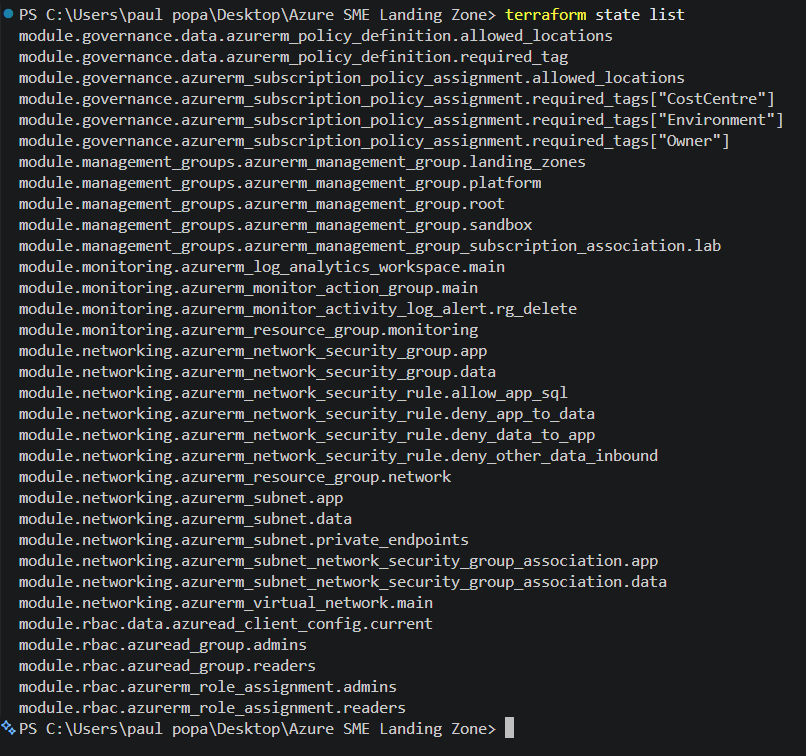
A final terraform plan should be performed to confirm that no unexpected changes remain.
Supporting Multiple Environments
With the modules established, the next improvement is separating customer and environment configurations into independent Terraform root modules and state files.
For example:
customers/
└── customer-a/
    ├── tenant/
    ├── subscription/
    ├── dev/
    └── prod/
Each configuration will call the appropriate shared modules while maintaining independent Terraform state.
Tenant-level management groups will be deployed once per customer tenant. Subscription-wide governance, RBAC and monitoring will be deployed once per target subscription, while networking can be deployed independently for development and production.
This avoids duplicating shared resources while allowing environments to use different network address spaces, tags and infrastructure settings.
moved blocks above address refactoring within the current state; they do not automatically transfer resources between independent backends.Conclusion
The SME Azure Landing Zone configuration has been designed for conversion into reusable Terraform modules covering management groups, governance, networking, RBAC and monitoring.
This approach reduces duplicated code, improves maintainability and allows infrastructure configurations to be adapted for different customer requirements.
Once the existing resources have been successfully migrated and validated, the next stage will focus on independent customer environments and automated deployment pipelines.
Troubleshooting
401 Unauthorized: MFA Required
During the deployment of the Azure Policy assignment, Terraform returned a 401 Unauthorized error.
Error
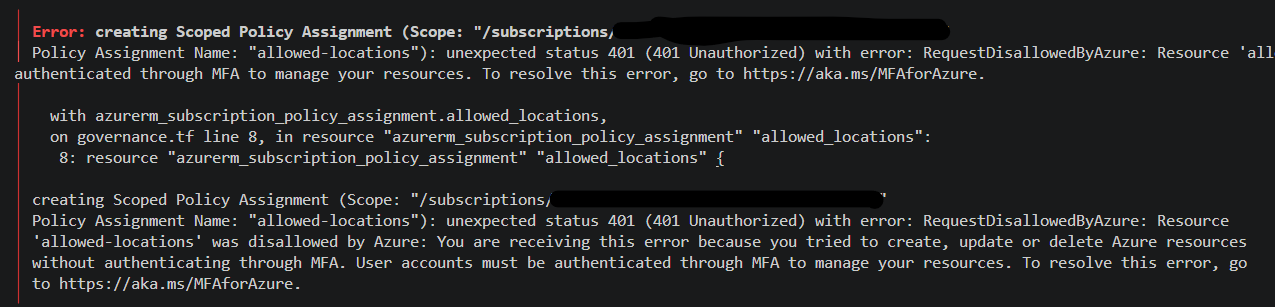
Azure required multi-factor authentication (MFA) before allowing the policy assignment to be created. The existing Azure CLI authentication session did not satisfy this requirement.
Resolution
I cleared the existing Azure CLI authentication session and signed in again using device code authentication.
az logout
az account clear
az login --use-device-code
This initiated a fresh authentication process, allowing the required MFA authentication to be completed.
After authenticating, I reran the Terraform deployment and it was successful.
403 KeyBasedAuthenticationNotPermitted
During the deployment of the Terraform remote state storage account, Terraform returned a 403 Forbidden error.
Error
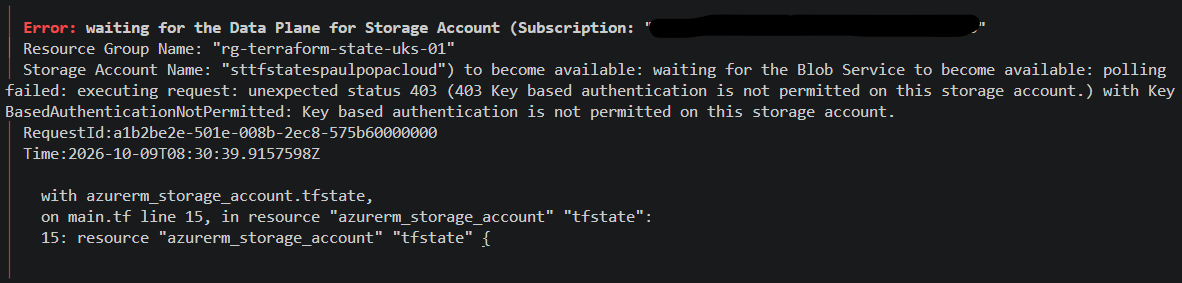
The storage account had Shared Key authentication disabled using:
shared_access_key_enabled = falseHowever, the AzureRM provider was still attempting to access the Blob service using key-based authentication.
Resolution
To resolve this, I updated the AzureRM provider configuration in bootstrap/providers.tf to use Microsoft Entra ID authentication for Azure Storage.
provider "azurerm" {
  features {}

  subscription_id     = "YOUR-SUBSCRIPTION-ID"
  storage_use_azuread = true
}
The storage_use_azuread = true setting instructs the provider to use Microsoft Entra ID authentication for supported Azure Storage operations instead of Shared Key authentication.
After applying this change and rerunning Terraform, the deployment completed successfully.